Status message

Media: Audio Embed

Upload an audio file to add a player.

Understanding Media: Audio Embed

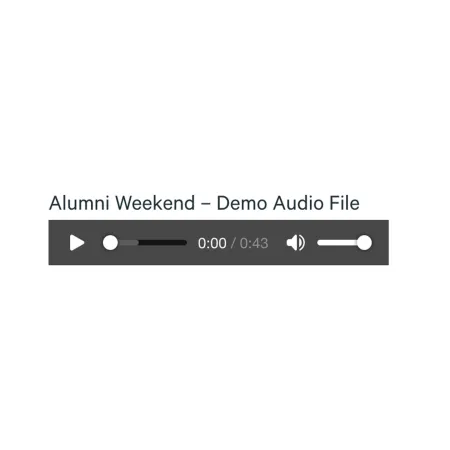
Example image of the "Media: Audio Embed" component / paragraph.

Media: Audio Embed as displayed in Firefox

The Media: Audio Embed component lets you upload one or more audio files and display them on a page as inline audio players. Visitors can press play and listen to the recording without leaving the page or downloading anything. The player will look slightly different based on your browser.

When to use Media: Audio Embed

Reach for Media: Audio Embed whenever you have an audio recording hosted on your own machine that you want people to be able to play directly on the page. Good use cases include:

  • A recorded welcome message from a dean or department chair
  • Interviews with faculty, staff, or students
  • Music samples or short performance excerpts from the School of Music
  • Spoken-word announcements or audio statements tied to a news story
  • Language pronunciation guides on a program page
  • Podcast episodes you host on ithaca.edu

Avoid using Media: Audio Embed if your audio lives on an external service like SoundCloud, Spotify, or Apple Podcasts. For players from third-party platforms, the Embed Code component is usually a better fit. If your content is a video, even a talk-heavy one, use Media: Video Embed instead.

Adding and modifying Media: Audio Embed

Audio file (required)

The Audio file is the actual recording visitors will hear. Click "Choose File" and select the file from your computer.

A few requirements to keep in mind:

  • Only mp3, wav, and aac files are allowed.
  • Each file must be 100 MB or smaller.
  • You can only upload one file per item. To add more recordings to the same component, use "Add another item" and upload each one separately.

If your file is in a different format or is too large, convert or compress it before uploading. Most audio editors (including the free Audacity) can export to mp3 at a smaller file size.

Name (required)

The Name is a short, readable label for the recording. This is the text that appears alongside the player, and it's what people using screen readers will hear announced when they reach the audio, so write it for a human reader. The Name field supports up to 60 characters.

Good examples:

  • "Welcome message from Dean Kornfeld"
  • "Interview with Professor Smith, Part 1"
  • "Pronouncing common Italian greetings"

Avoid generic labels like "Audio 1" or "Recording final v2," which don't tell visitors or assistive tech anything useful.

Adding more than one audio file

A single Media: Audio Embed can hold multiple recordings, each appearing as its own player stacked in the order you set. Click "Add another item" beneath the last file to add another. To reorder them, use the drag handle on the left side of each block.

Supported content types:

  • Sites,
  • topics,
  • pages,
  • academic departments,
  • news articles,
  • profiles,
  • and academic programs.
Demo Audio File - Alumni Weekend Promo
Audio file