Media: Video Embed

Embeds a video player from Youtube or Vimeo.

Understanding Video Embed

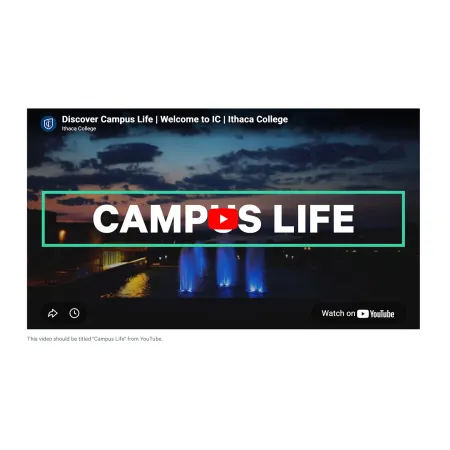
Example of the "Media: Video Embed" component/paragraph, featuring a Campus Life video from the Ithaca College YouTube channel

The Video Embed component places a video player directly on your page, pulling the video from YouTube or Vimeo. Visitors can watch the video without leaving your page, and you can add a caption underneath to give it context.

When to use Video Embed

Reach for Video Embed whenever you want to feature a single video alongside your written content. Good use cases include:

  • A welcome message or program overview from a department chair
  • A research demo or guest lecture on a faculty profile
  • An interview clip embedded in an IC News or IC View article
  • A facility walkthrough or behind the scenes look at a course
  • A recap of a campus event or performance
  • Marketing Communications created content

If your content is a banner-style photo that launches in a popup video, the Hero: Video Modal component is usually a better fit. If you want a video paired with a thumbnail and body text in a side-by-side layout, the Video Content Tile component is a better choice. For multiple videos shown together as a set, the Media: Gallery component is the right tool.

The video itself must already live or unlisted on YouTube or Vimeo. The component cannot host video files directly, so upload your video to one of those services first and copy the share URL.

Adding and modifying Video Embed

Video (required)

The Video field is where you connect your YouTube or Vimeo video to the component. Click "Add" to open a window with two tabs:

  • Add lets you create a new video by pasting a URL. Use this any time you are adding a video that has not been uploaded to the site before.
  • Library lets you choose a video that has already been uploaded to the site. Use the Library to quickly add a recently uploaded video to multiple pages.

The Add tab will load by default, showing a short form with the Video URL and Transcript fields.

Video URL (required)

The Video URL is the link to the video on YouTube or Vimeo. Paste the full URL from your browser's address bar, or use the share link provided by the platform. Only YouTube and Vimeo are supported, so videos hosted elsewhere will not work.

Transcript (optional)

The Transcript field is a place to provide a written version of the video's spoken content. A transcript is not required, but providing one is an accessibility best practice. It helps visitors who are deaf or hard of hearing, supports people who prefer reading to watching, and makes your content easier to find through search. The Transcript field supports rich text editing.

Caption (optional)

The Caption appears as a short line of text directly beneath the video player. Use it to credit the video's creator, briefly describe what the viewer is about to see, or note when and where the video was recorded. The Caption is limited to 200 characters and supports rich text editing. See the Text component for the full list of formatting options.

Supported content types:

  • sites,
  • academic programs,
  • academic departments,
  • topics,
  • pages,
  • blog posts,
  • custom landing pages,
  • IC View articles,
  • profiles,
  • person spotlights,
  • and news articles.

(Caption) Demo example of the "Media: Video Embed" component, linking to a video hosted on the Ithaca College YouTube page.