Media: Image

A single image with the option to expand into a full-size popup.

Understanding the Image Component

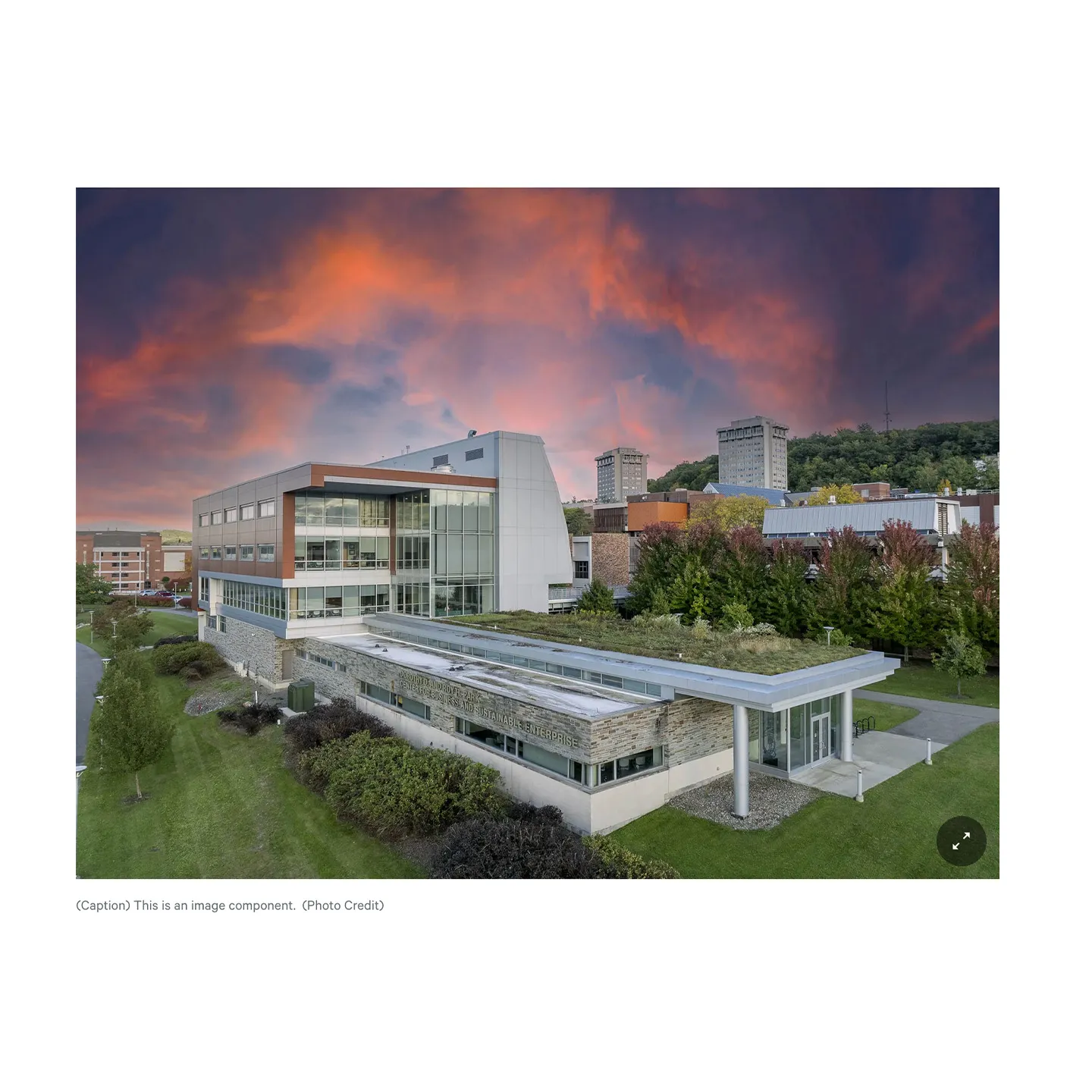
The Image component places a single image on the page along with an optional photo credit and caption. When a visitor clicks the image, it opens in a lightbox at full size so they can see the details. The photo credit and caption appear both underneath the image on the page and inside the expanded view.

When to use the Image component

The Image component works well when you want to feature a single visual within your content. Good use cases include:

  • Featuring a photograph alongside a story or article
  • Displaying a graphic, diagram, or illustration that supports surrounding text
  • Adding a portrait to a profile or person spotlight
  • Visually breaking up long sections of text

If you have several related images that belong together, consider Media: Gallery instead. If you want text to flow around the image, consider Media: Image with Text Wrap.

A note on accessibility

Every image should include alt text so that visitors using screen readers, and anyone whose browser fails to load the image, can still understand what it shows. The Image component prompts you for alt text after you upload your file. Write a brief, plain description of what is actually in the image. Avoid phrases like "image of" or "photo of," since screen readers already announce it as an image.
Adding and Modifying Images

Uploading the image

Click "Choose File" inside the Image field to upload your file. A few requirements to keep in mind:

  • One file per Image component
  • 10 MB file size limit
  • Allowed file types: PNG, GIF, JPG, JPEG, WEBP
  • Images must be larger than 320 by 240 pixels

Alt text

Once your image is uploaded, an alt text field appears. The support text reads, "Short description of the image used by screen readers and displayed when the image is not loaded. This is important for accessibility." Keep it short, and describe what the image actually shows.

Focal point

After uploading, click on the image to place a crosshair on its most important spot. You can also enter the focal point manually in the format "leftoffset,topoffset" using percentages (for example, 25,75).

In most cases this is not critical for the Image component, since your photo displays at the full width of the content area without aggressive cropping. The focal point matters most when the same image is reused in other components or as a thumbnail preview elsewhere on the site.

Photo Credit (optional)

Use the Photo Credit field to attribute the photographer or source. The text appears below the image on the page and inside the lightbox when the image is expanded. The Photo Credit field is limited to 50 characters.

Caption (optional)

The Caption field supports basic rich text formatting, including bold, italics, and links. Captions appear below the image on the page and inside the lightbox when the image is expanded. For more on the formatting controls, see the Text component documentation.

Background / Decorative Image 

Requires Administrator permissions.

This checkbox disables the popup, caption, and photo credit display. It is intended for Administrators when using Marketing Communications created assets as page spacers and similar decorative elements. Most editors will not see this option, or otherwise should leave it unchecked.

Supported content types

  • Sites
  • Academic Programs
  • Academic Departments
  • Topics
  • Pages
  • Categories
  • Blog Posts
  • IC View articles
  • Custom Landing Pages
  • Profiles
  • Person Spotlights
  • News articles