Text

A basic content area for paragraphs, tables, and headings.

Understanding the Text component

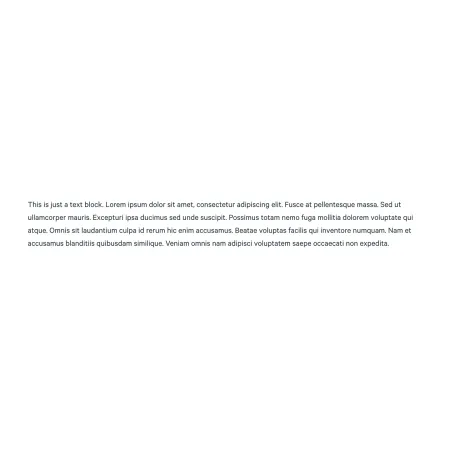
Image example of the "Text" component

The Text component is the most fundamental building block for adding written content to a page. It supports rich text formatting, hyperlinks, tables, and small subheadings, making it the right choice for any general body content that does not need a more specialized component.

When to use the Text component

Reach for the Text component whenever you need to add written content that does not fit into a more specific component (like a Callout, Blockquote, or Accordion). Common use cases include:

  • Body paragraphs that make up the bulk of a page
  • Content broken up by smaller subheadings
  • Lists, including bulleted and numbered
  • Simple tables of information
  • A short standalone paragraph between two other components

If your content is just a single sentence or two of introductory text at the top of the page, the Intro component is usually a better fit. If your content is a prominent piece of information that should stand out, consider a Callout or Hero instead.

Text and other components work together

You can place multiple Text components on a single page, with other components stacked between them. There is no need to fit everything into one large Text block. Breaking content up into smaller Text components, separated by images, callouts, or other media, often makes a page easier to read and easier to edit later.

Adding and Modifying Text components

Text Heading (optional)

At the top of each Text component, you can add an optional heading that appears above the body content. This is useful when the section needs its own title (for example, "Admissions Requirements" or "What to Bring"). Leave it blank if the surrounding content already provides context, or if you want the text to flow as a continuation of what comes before it. The heading supports up to 120 characters, and is limited for readability purposes.

Text (required)

The Text field is where you write your main content. It uses CKEditor, a rich text editor with a toolbar of formatting options across the top:

  • Bold (B): Emphasize a word or phrase with bold text
  • Italic (I): Emphasize a word or phrase with italics
  • Link: Highlight text and click the link icon to add a hyperlink, either to another page on ithaca.edu or to an external site
  • Anchor (the flag icon): Create an in-page anchor that other links can jump to directly
  • Bulleted list: Create an unordered list. Use the dropdown arrow next to the icon to choose between bullet styles
  • Numbered list: Create an ordered list. Use the dropdown arrow next to the icon to choose between numbering styles
  • Paragraph (style dropdown): Switch between text styles. You will see two options here. "Paragraph" is standard body text, and is what you should use for most content. "Heading 4" creates a smaller subheading, sized one step below the heading that introduces each section of this page. Use Heading 4 to break up longer Text blocks into clearly labeled subsections
  • Table: Insert a table for tabular data. Use the dropdown arrow to access additional table options like adding rows, adding columns, or merging cells
  • Source: Switch to raw HTML view to make precise edits. Only use this if you are comfortable with HTML, and need an advanced level of control.

To create a single line break, press Shift + Enter.

SUPPORTED CONTENT TYPES:

  • Sites,
  • academic programs,
  • academic departments,
  • topics,
  • pages,
  • categories,
  • blog posts,
  • custom landing pages,
  • IC View articles,
  • Intercom posts,
  • faculty/staff listings,
  • profiles,
  • person spotlights,
  • and news articles.