Intercom is a location on the Ithaca.edu website, which acts as a historic catalog of Intercom Posts. Intercom Posts may be included in one or more Intercom Roundup emails, sent Monday, Wednesday, and Friday.
Faculty and staff may submit Intercom Posts via Ithaca.edu at anytime, while Student Organization Leaders must submit a request to be provided access to create Intercom Posts.
Understand the structure and guidelines of Ithaca College's internal message board.
Intercom is the campus-wide platform for sharing news, events, and announcements. This reference covers topic categories, posting permissions, and publishing options. Use this guide to ensure your stories reach the right audience.
What is Intercom
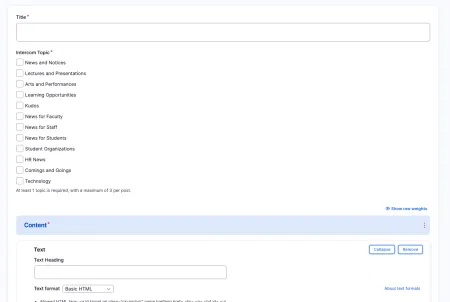
Creating an Intercom Post
Navigate to the Intercom section of ithaca.edu. While logged in, click "Add Intercom Post" in the action ribbon at the top of the page.
Title
Enter the title of your post as you want it to appear both on the Intercom page and in the Roundup email. Keep it clear and specific -- this is the first thing readers see when deciding whether to open your post.
Topics
Select at least one topic that best describes your post. You can select up to three. Topics help readers find relevant announcements and filter the Intercom feed. Some topics, such as IT and HR News, are limited to specific organizational units on campus.
Available topics are:
- News and Notices
- Lectures and Presentations
- Arts and Performances
- Learning Opportunities
- Kudos
- News for Faculty
- News for Staff
- News for Students
- Student Organizations
- HR News
- Comings and Goings
- Technology
Content
Content managers can add two types of content blocks to a post:
- Text
- A standard rich text block for your announcement copy. At least one Text block is required. For formatting options available in the text editor, see the Text component.
- Image - Flow Text
- An image aligned left or right, with your text wrapping around it. See Media: Image with Text Wrap for details on how this component works.
You can add more than one Text block if your post requires it, but most Intercom posts are brief by nature. If your content is lengthy, consider whether a page on the main site would serve it better, with a short Intercom post linking out to it.
Accessibility statement for campus events
If your post announces a campus event, you are required to include an accessibility statement. Check the "Add disability statement" checkbox, then enter a contact name, email address, and phone number that attendees can reach out to with accessibility inquiries. For guidance on accessibility requirements, see Creating Accessible Web Content.
Publishing and scheduling
Intercom offers three publishing options. All of them are found in the "Publish options" section at the bottom of the post editor.
To save as a draft : select "Save Draft for Later Publishing" and press "Save." Your post will not be visible on Intercom or included in any Roundup until you return to publish it. Drafts are accessible from the "My Intercom Content" page.
To publish immediately and send in the next Roundup : select "Publish Post Now and Send in Next Roundup" and press "Save." Your post will go live on Intercom right away and will be included in the next scheduled Roundup email.
To schedule a specific Roundup date : select "Custom Roundup Scheduling." Enter the date of the Roundup you want the post included in. This must be a Monday, Wednesday, or Friday. You can add additional Roundup dates by clicking "Add Additional Roundup Date." If you want the post to be visible on the Intercom page before the first Roundup, check "Make visible on Intercom immediately."
Deadlines
To be included in a given morning's Roundup, your post must be published or scheduled by 11:00 PM ET the night before.
Sending the same announcement in multiple Roundups
If you want your post to reach readers across more than one Roundup, use the "Custom Roundup Scheduling" option and add each date you want it included. Do not create separate duplicate posts for the same announcement – a single post with multiple scheduled Roundup dates is the correct approach.
Questions and support
If you run into issues creating or publishing an Intercom post, please contact the Web Team.