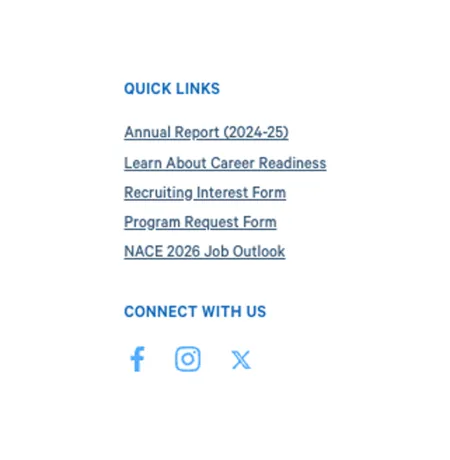
Social Links and Quick Links are set once on a top-level piece of content and then appear automatically on every page within that section. They give visitors a reliable way to reach a unit's most important links and its social media accounts, no matter which page they land on.
Both are edited on the Secondary Content tab. They are available on Sites, Academic Departments, Programs, and Profiles. You set them on that top-level item, and they carry through to every subpage beneath it. Individual subpages do not have their own Secondary Content tab. To change these links, edit the parent.
Where they appear
Both sets of links appear in the left sidebar of every page in the section, below the section's navigation menu.
- Quick Links are listed as text links under a "Quick Links" heading.
- Social Links appear as a row of social media icons under a "Connect with us" heading.
The "Quick Links" and "Connect with us" headings are applied automatically. They are not fields you can edit.
If you leave either set empty, it simply does not appear. A section with no Social Links will not show a "Connect with us" area at all, and the same is true for Quick Links.
Editing Social Links & Quick Links
To edit either set:
- Open the Site, Academic Department, Program, or Profile in edit mode.
- Click the Secondary Content tab above the editing area.
- Make your changes, then click Save .