Collection: IC View & News

Highlight one or more IC News articles or IC View issues.

Understanding the Collection: ICView & News component

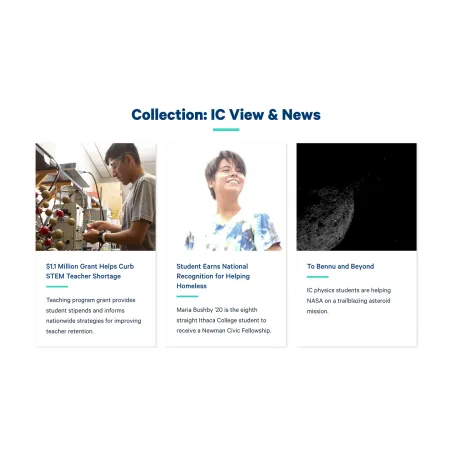
Example image of the "Collection: IC View & News" component, showing three Ithaca College News Articles

The Collection: ICView & News component lets you feature existing IC News articles and IC View issues on your page as a row of cards. Each card displays an image, headline, and short teaser that are pulled automatically from the story you choose, so you do not have to recreate or rewrite any of that content yourself. You can feature between one and three stories at a time, along with an optional heading, subheading, and "read more" link.

These stories come from the IC Office of Marketing and Communications. This component is meant for surfacing and pointing to that existing content, not for creating new articles.

When to use Collection: ICView & News

Reach for this component when you want to connect your page to recent or relevant coverage from IC News or IC View. Good use cases include:

  • Featuring news stories that involve your department, program, or faculty
  • Highlighting an IC View issue or feature article related to your content
  • Pointing visitors toward college coverage that supports the topic of your page
  • Adding an "in the news" style section to a department or program page

Avoid using this component for content you have written yourself, or for pages, events, or documents that are not IC News articles or IC View issues. If you want to group your own cards, the Collection: Card Grid component is usually a better fit. To showcase upcoming events, use Featured Events instead.

How the cards are built

You only choose which stories to feature. The image, headline, and teaser text shown on each card are pulled automatically from the article or issue you select. If a story is later updated by Marketing and Communications, the card reflects those changes. Because of this, you cannot edit the image or text shown inside an individual card.

Adding and modifying Collection: ICView & News

Section Heading (optional)

The Section Heading is the title displayed above the row of cards, for example "Featured News" or "In the Headlines." It is limited to 40 characters to keep the heading short and scannable. Leave it blank if the surrounding content already makes the purpose of the section clear.

Section Subheading (optional)

The Section Subheading is a short line of supporting text that appears beneath the heading. Use it to add brief context about the stories you are featuring. It is limited to 130 characters.

Story (required)

The Story field is where you choose the content to feature. Click into a Story field and begin typing the name of the IC News article or IC View issue you want. A list of matching results will appear, and you select the correct one from that list.

The component provides up to three Story fields. You must fill in at least one, and each Story you add becomes one card in the published component.

To reorder your stories, use the drag handle (the dotted icon) on the left side of each Story field and drag it into the position you want. The order of the fields here is the order the cards appear on the page.

More Link (optional)

The More Link lets you add a single link below the cards, which is useful for sending visitors to a fuller list of stories. It has two parts:

  • URL: Start typing the title of a piece of content to select it, or enter an internal path such as /news or a full external web address.
  • Link text: The words shown for the link, for example "See all news" or "Read more from IC View."

Leave both fields blank if you do not need a link.

Supported content types:

  • sites,
  • topics,
  • pages,
  • academic programs,
  • academic departments,
  • custom landing pages,
  • and profiles.