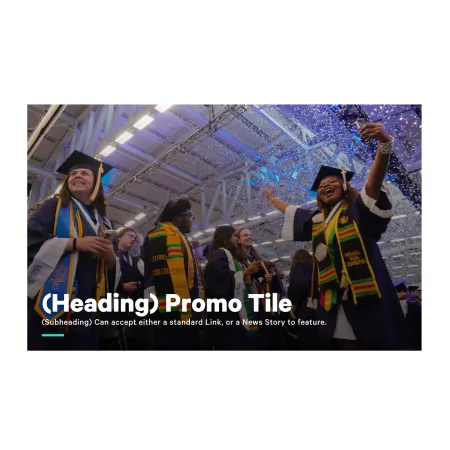
Promo Tile

Media-forward promo card with text and optional link.

Understanding the Promo Tile component

Example of the "Promo Tile" paragraph

The Promo Tile is a large, image-forward card that lays a heading and a short subheading over a full-width photo. It is built to catch the eye and send people somewhere: when you add a link or feature a story, the whole tile becomes a single clickable promotion. Reach for it when there is one thing you really want a visitor to notice and act on.

When to use a Promo Tile

Reach for the Promo Tile when you want a single, visually striking promotion backed by a strong image. Good use cases include:

  • Spotlighting a recent IC News or IC View story near the top of a department site,
  • Promoting an upcoming application deadline or admissions event,
  • Highlighting a flagship program or signature initiative,
  • Driving visitors to a campaign or landing page you want them to click into.

Avoid using a Promo Tile if your content is mostly text or detailed information, since the heading and subheading are short by design. If you just need to call attention to a block of text, the Callout is usually a better fit. If you are promoting a video, the Video Content Tile is the better choice. The Promo Tile also leans heavily on its image, so skip it when you do not have a strong, uncluttered photo to work with.

How the link works

When you add a Link or select a Featured Story , the entire tile, including its heading, becomes one clickable link. You would normally use one or the other, not both. If you leave both empty, the tile displays as a static image with text and is not clickable.

Choosing the image

Because the heading and subheading sit on top of the photo, pick an image with a relatively open, uncluttered area where the text lands so the words stay easy to read. After uploading, set the focal point (described below) so the most important part of the photo stays in view as the tile crops to different screen sizes.

Adding and modifying the Promo Tile

Image (required)

The Image is the photo that fills the tile. Click "Choose File" to upload one from your computer, then move the crosshair that appears over the image to mark its most important spot. That focal point keeps the key part of the photo in view as the tile crops on different screens. You can add one file only, up to 10 MB, in png, gif, jpg, jpeg, or webp format, and the image must be larger than 320×240 pixels. When you are finished, click "Create media item" to attach the image to the tile.

While creating the image you can also fill in a Photo Credit (optional, 50 character limit): a short attribution line for the photographer or source, such as "Photo by Jane Doe." Leave it blank if no credit is needed.

Heading (optional, 60 character limit)

The Heading is the large title shown over the image. Keep it short and punchy, since it sits on top of the photo and is capped at 60 characters. For example, "Apply by January 15." When the tile is linked, this heading is the text that becomes the clickable link. Light italic emphasis is supported.

Subheading (optional, 100 character limit)

The Subheading is the smaller line that appears beneath the heading, up to 100 characters. Use it to add one short supporting detail, such as "Priority deadline for first-year applicants." Light italic emphasis is supported.

Link (optional)

The Link sets where the tile points. Start typing the title of a piece of Ithaca content to select it from the list, or enter an internal path such as /admission or an external URL such as https://example.com. You can also enter <front> to link to the homepage. Adding a Link makes the whole tile clickable. Use this field when you are pointing to a regular page, and use Featured Story instead when you are promoting a News or IC View story.

Featured Story (optional)

The Featured Story field lets you point the tile at an existing News or IC View story without retyping its information. Start typing the story's title and select it from the list. Use this instead of the Link field when the destination is an IC News or IC View story. Choose either a Link or a Featured Story, not both.

Supported content types:

  • sites,
  • academic programs,
  • academic departments,
  • topics,
  • and news articles.
Looking for an example?

This component isn't available on standard pages. See it in context on the Topic Demo of the Web Content Demo.