Two Column Text

Side by side text columns for presenting parallel or complementary content.

Understanding Two Column Text

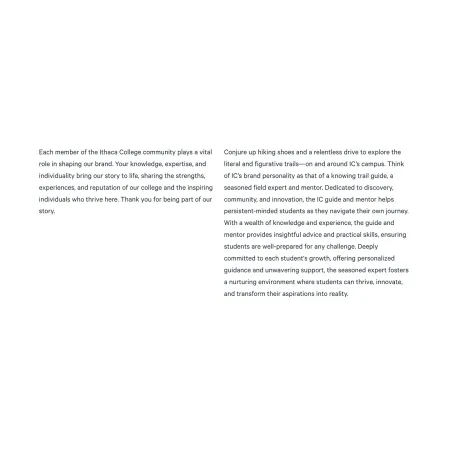
Image example of the "Two Column Text" component

Two Column Text is a layout component that places two rich text editors side by side on the page. Each column is independent, and the columns sit at equal width.

Unlike a standard Text component, Two Column Text does not include a heading field. If you want a title above your columns, add a Section Heading component directly above this one.

When to use Two Column Text

This component works well when you have two pieces of related content that benefit from being read together at a glance. Good use cases include:

  • Comparing two options, programs, or pathways
  • Pairing a list with a short explanation
  • Showing "before and after" or "do and don't" content
  • Splitting a longer text section into two shorter, more scannable halves

Avoid using Two Column Text for content that reads as a single continuous thought, or for one short paragraph paired with a much longer one. Lopsided columns can look unbalanced and are harder to read. If your content does not have a natural two-part structure, a standard Text component is usually the better choice.

Keep in mind that on smaller screens, the two columns stack vertically, with the left column appearing first. Make sure your content still reads well in that order.

Adding and Modifying Two Column Text

Left Column Text (required): The content that appears in the left column on desktop, and on top when the layout stacks on smaller screens. This field supports full rich text editing, including bold, italics, links, lists, and tables.

Right Column Text (required): The content that appears in the right column on desktop, and below the left column when the layout stacks on smaller screens. This field supports the same rich text options as the left column.

A note on length: There are no character limits on either column, but the component looks best when the two columns are roughly similar in length. If one column is significantly longer, the shorter side will leave a large gap of empty space.

SUPPORTED CONTENT TYPES:

  • Sites,
  • academic programs,
  • academic departments,
  • topics,
  • pages,
  • categories,
  • blog posts,
  • and custom landing pages.
Looking for help with the rich text editor?

Both columns in this component use the same rich text editor as the standard Text component. For a full breakdown of formatting options, paragraph styles, links, and tables, head to the Text component page.