Updated Editing Experience

By Kieran Gainer, June 15, 2026
Refreshed editing, expanded pallet, and updated documentation.

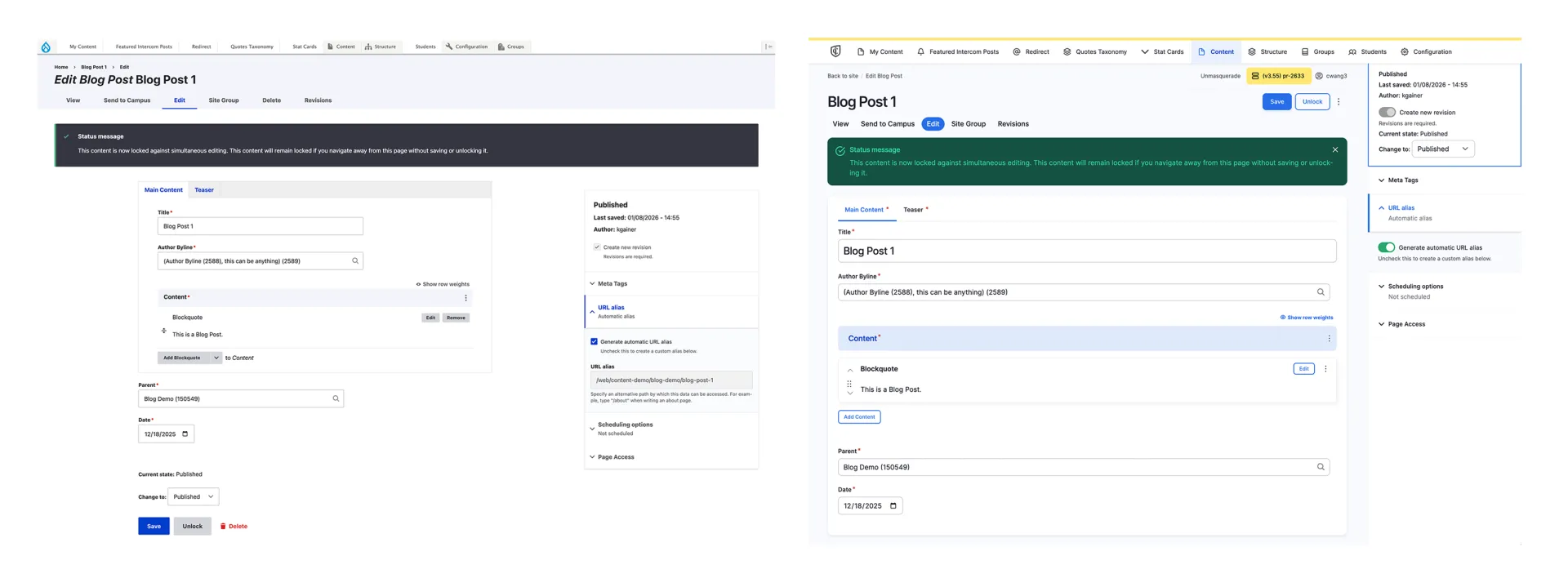
We've refreshed the screens you use to build and edit content. With this release, editing looks cleaner and more modern, a few everyday tasks are easier, and there are some new components to work with.

The most important thing to know up front: your existing pages and content do not change. Everything you have already built stays exactly as it is, and the components, fields, and publishing steps you know work the same way. They simply look better, and in a few cases have clearer names.

Here is what you will notice, and where to find more detail.

A few components have new names

To make components easier to find and to group related ones together, several have been renamed. Only the label has changed; each component works exactly as it did before. The three you are most likely to come across:

  • "Image - Flow Text" is now "Media: Image with Text Wrap"
  • "Image" is now "Media: Image"
  • "Card Collection" is now "Collection: Card Grid"

You will also notice the new naming groups things with prefixes like Media, Hero, Card, Collection, and Feed, which line up with how the new Add Content picker is organized. For every current name and what each one does, browse Paragraphs (Components) and Cards & Card Collections.

New components

This release also features three brand-new components:

Additionally, we recently added a simple Two Column Text paragraph, offering side by side text columns for presenting parallel or complementary content.

To see them in action, visit the Content Demo.

Alongside these, several existing components are now available on more content types than before, including Page and Blog Post, and a few now sit at different permission levels. If an option appears on a page that was not there previously, that is why. The Content Types and Roles & Permissions references have the specifics.
A clearer way to add components

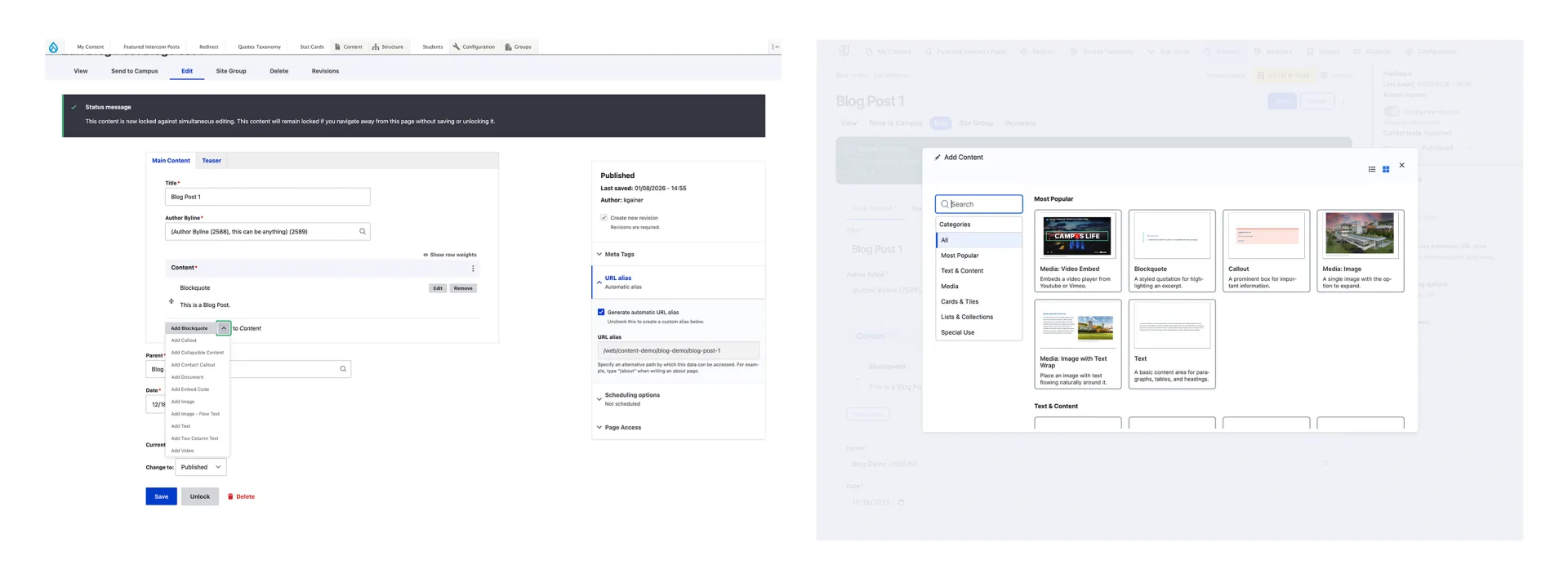
When you add a component to a page, you will now see a visual picker in place of the old drop-down list. Each component appears as a card showing its name, a short description of what it does, and a preview. You can search by name or browse by category, such as Text & Content, Media, Cards & Tiles, and Lists & Collections. This makes the right component much easier to find, especially if editing is not part of your daily routine.

For a full walkthrough of how components work, see Paragraphs (Components).

Easier-to-scan content lists

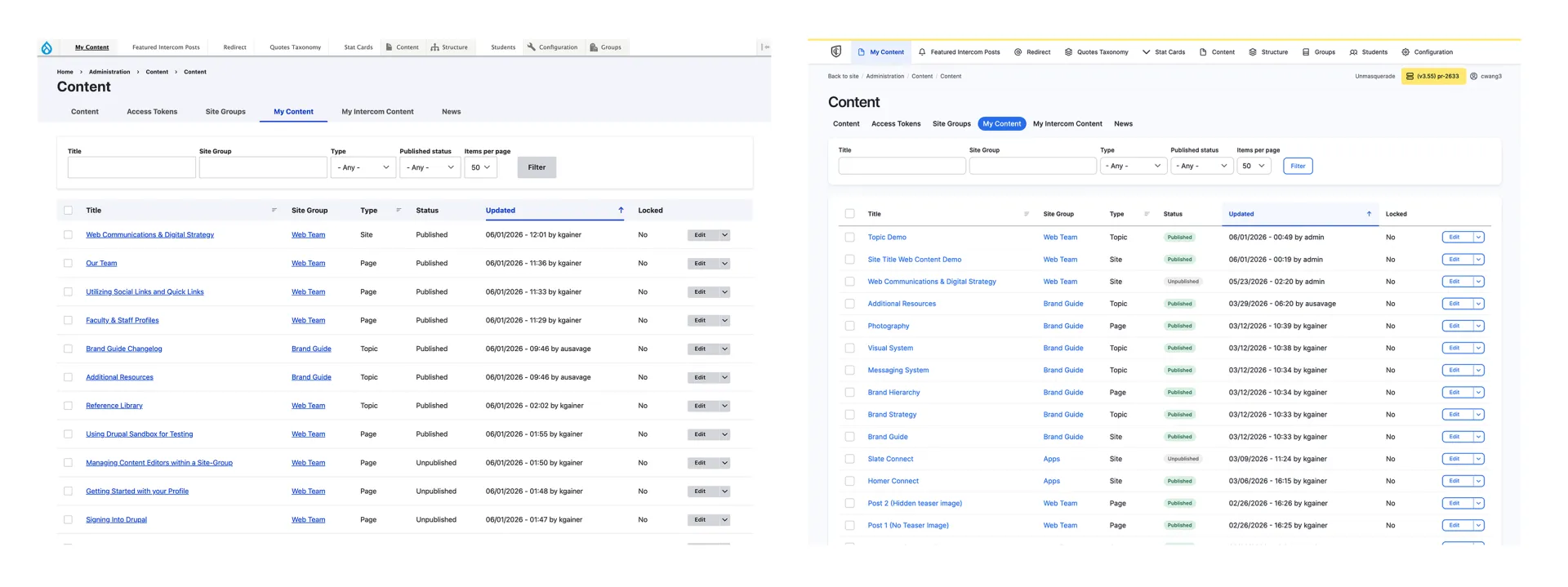
Your content lists, such as My Content, are simpler to read. Status now appears as a clear, color-coded label, so you can tell at a glance what is Published and what is still Unpublished. The filters across the top (Title, Site Group, Type, and Published status) work just as they did before.

The Save button IS pinned at the top

The biggest everyday improvement is that Save no longer hides at the bottom of a long page. On the edit screen, Save and the publishing controls stay pinned to the top and remain visible as you scroll. That means no more scrolling to the bottom to find Save, and much less chance of losing your work.

When a screen has more options than just Save, they are grouped together in that same top area, with any secondary actions tucked into a "More actions" menu (the three-dot icon).

tidied up Publishing options

The settings that control how and when a page goes live (its publishing state, scheduling, URL alias, page access, and revisions) are now gathered into a tidy panel beside your content. The current state and the "Change to" control sit right where you would expect them. For a reminder of what each state means, see Publishing States & Revisions.

Where to Learn More

Everything is documented in the Reference Library:

If you are newer to editing or would like a step-by-step refresher, start with the Support Guides. To see components working together on real pages, explore the Content Demo.

Questions or need a hand?

If something does not look right, or you would like help getting comfortable with the new editing experience, reach out through Project Requests & Content Support or get in touch with Our Team.