Custom Cards

The most flexible card type, mixing image and non-image cards in custom layouts.

Understanding Custom Cards

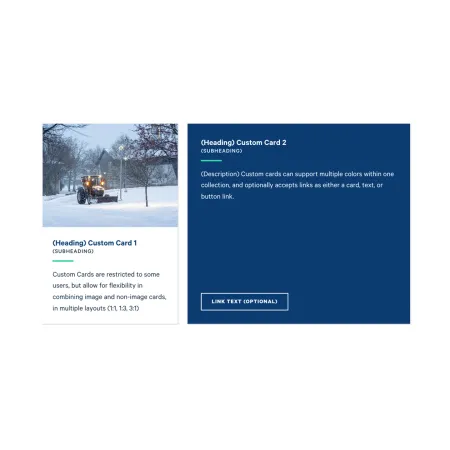
Example of two "Custom Card's", one with an image and one without.

Custom Cards are the most flexible card type. Unlike the other cards, where every card in a collection is the same and lines up in an even row, Custom Cards can vary. One card can lead with an image while the next is text only, each card can have its own color, and the collection can be arranged in different layouts. Like every card, they live inside a Collection: Card Grid.

This flexibility is the whole point of Custom Cards. They are the right choice when your content does not fit the tidy, uniform pattern of the other card types and you need to combine different kinds of content in one group.

When to use Custom Cards

Reach for Custom Cards when you want to combine different kinds of content in one group, or arrange cards in an uneven layout. Good use cases include:

  • A featured item shown larger beside a smaller supporting card
  • A group where one card is a photo and the others are text
  • A layout that needs more visual variety than a standard row of matching cards

If all of your cards are the same and should line up evenly, one of the simpler card types is usually a better fit: use the Card: Image for a row of photos, the Card: Text or Card: Info for matching text cards, or the Card: Statistics for numbers.

Who can use Custom Cards

Custom Cards are restricted and are not available to every user. Access is managed by the Web Communications team. If you need to work with Custom Cards and do not have the option, contact the Web Communications team.

Adding and modifying Custom Cards

Inside a Collection: Card Grid, click "Add Collection: Custom" to add a card, then fill in the fields below. Reorder cards with the drag handle on the left of each card.

Collection Heading (optional)

The Collection Heading is the title displayed above the row of cards. Keep it short and descriptive, up to 60 characters.

Subheading (optional)

The Subheading is a short supporting line displayed beneath the Collection Heading, up to 130 characters. It only appears when you have entered a Collection Heading.

Layout Style (required)

The Layout Style sets how the whole collection is arranged. Choose from a grid of up to three equal cards, a side by side split of 1/3 and 2/3, or a side by side split of 2/3 and 1/3. Because it applies to the collection, all the cards share the chosen layout.

Style (required)

The Style sets the background color for that individual card, chosen from the dropdown: White, Dark Blue, Light Blue, Gray, and Simple. Because the color is set per card, the cards in one collection can each be a different color, or all share the same one.

Image (optional)

The Image is an optional photo for the card. Add one when you want that card to lead with a visual, and leave it empty for a text-only card. For help choosing, sizing, and preparing images, see the Working with Images guide.

Heading (required)

The Heading is the title displayed on the card, up to 255 characters. In practice, keep it short so the cards stay easy to scan.

Subheading (optional)

The Subheading is a short supporting line displayed beneath the Heading, up to 50 characters.

Description (required)

The Description is the main body text of the card. It supports rich text formatting; see the Text component for the full list of options.

Link (optional)

The Link is optional. If you add one, the card links out using the style set below.

  • URL: Start typing the title of an existing page to search for and select it, or paste an internal path or a full external web address such as https://www.ithaca.edu.
  • Link text: The visible text for the link. Add this only if you have entered a link.

Link Style (required)

The Link Style sets how the card links out: Button adds a button at the bottom of the card, and Card Link makes the entire card clickable.

Looking for an example?

This component isn't available on standard pages. See it in context on the Topic Demo page of the Web Content Demo.